 SokuPhoto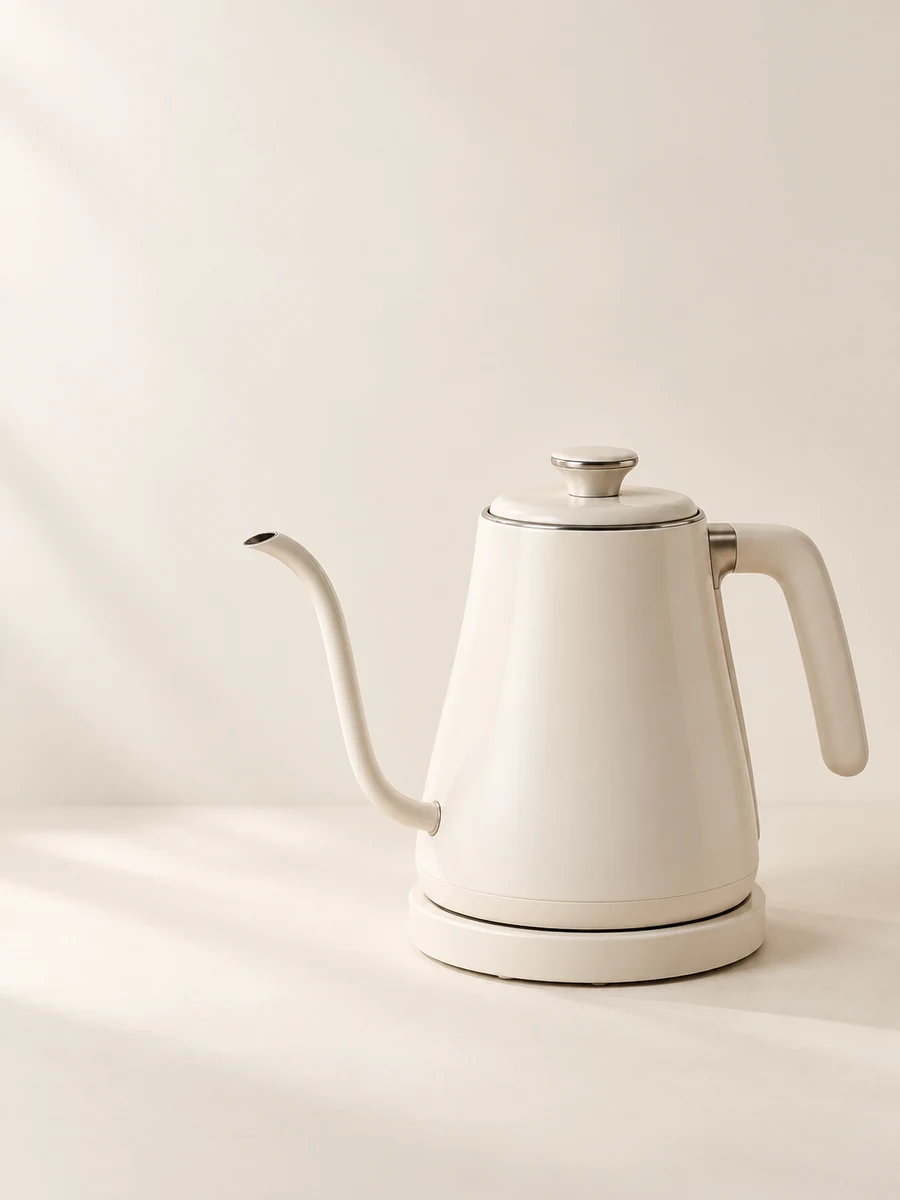
Find which kind of white-on-white problem you have
A white bottle can disappear for several different reasons. Inspect the original before choosing an editing tool. If highlights contain no visible texture, darkening the image may only turn a blank area gray; reshooting with less exposure is the safer route.
| Symptom | Try first | Avoid |
|---|---|---|
| One edge vanishes | Move a dark card just outside that edge of the frame | Drawing an invented outline |
| Label and shoulder are pure white | Retake with lower exposure | More contrast on clipped detail |
| Cutout has a pale halo | Inspect the edge against gray before export | Shrinking the mask until the item changes shape |
Make a simple edge test with a card
Shopify's product-photography guide notes that black cards can help define a white product against white. For a small item, use a dark card you already own and move it gradually beside the product, outside the camera view. Watch the edge rather than the overall brightness.
Reference: Shopify Help Center: Product photography ↗
- Keep the camera and product still. Take a frame without the card.
- Bring the card toward one side and take a second frame. Check whether it creates an edge or an unwanted dark reflection.
- Move it farther away if the stripe looks black or changes the impression of the material. Choose the mildest version that reveals the shape.
Do not remove every shadow
A small contact shadow tells the viewer where a product meets the surface. Erasing it completely can make a real object look pasted in. Keep the shadow soft and subordinate to the product unless the destination specifically requires otherwise.
A white cardboard box, cream ceramic and transparent glass should not all end up with the same surface. Check seams, corners and gloss separately. Do not neutralize a genuinely cream item to pure white just to match a listing grid.
Finish and inspect at two scales
Use your existing editor to compare a modest exposure adjustment with the original. At full size, examine the handle, cap, spout or corners. At thumbnail size, ask whether the product remains identifiable. If the edge needs aggressive editing to survive, change the light and reshoot instead.
In SokuPhoto, an AI background edit is a candidate, not an exact cutout guarantee. Compare the entire silhouette and reject added seams or altered handles. A white-looking background alone does not establish compliance with any marketplace's image rules; check the intended placement separately.
Before you publish
- White texture is visible, not clipped away.
- Cream items have not been turned pure white.
- Handles, corners and openings keep their original shape.
- No dark-card reflection looks like damage or a new seam.
Sources & editorial notes
Original workflows and examples by SokuPhoto, informed by the linked sources. Prompts are examples, not guarantees. Platform features and requirements can change; sources checked on September 16, 2026.