 SokuPhoto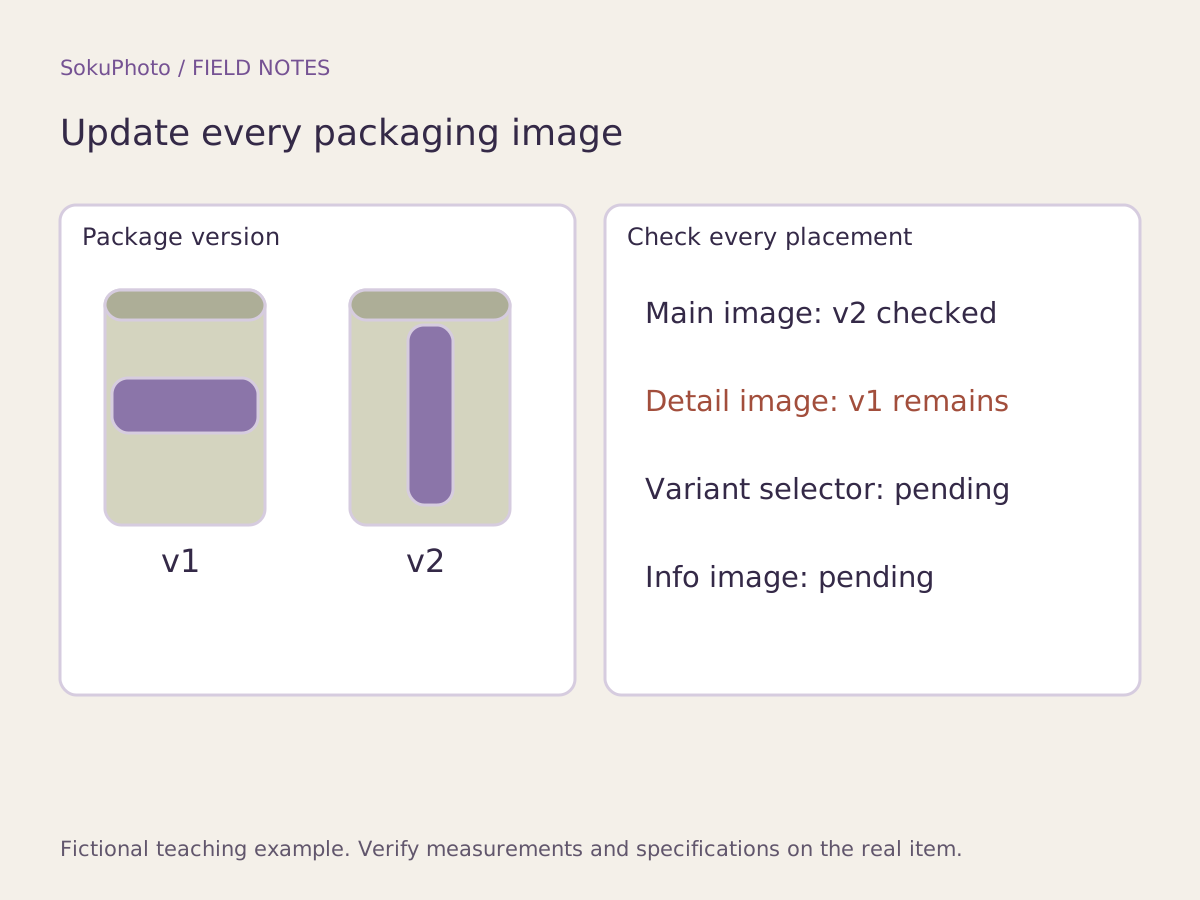
Confirm the version that will ship before choosing images
Ask the person responsible for the product whether the change affects only the outer box, the container label, or also the contents or specifications. If old stock remains under the same product name, first establish which version each order will receive. The person preparing images should not make assumptions about inventory or shipping conditions.
Google's product image requirements also call for images that accurately represent the product being sold. The register below is an example of an internal store workflow, not a packaging changeover rule shared by all platforms.
Reference: Google Merchant Center: Image link requirements ↗
Check packaging versions across 4 image placements
This example uses a fictional tea tin, T-01. Version v1 has a horizontal label band and v2 has a vertical band; this does not imply any change in quality or capacity. The example deliberately includes a main image that has been updated while an old detail photo remains.
| SKU / packaging | Source image → final file | Placement | Changeover date / owner | Status |
|---|---|---|---|---|
| T-01 / v2 | tea_v2_front.jpg → tea_v2_main.jpg | Main product image | Enter verification date / product owner | Replaced with new version |
| T-01 / v1→v2 | tea_v1_back.jpg → unknown | Detail / back label | Not yet confirmed / photographer | Old version remains. Take an additional v2 photo |
| T-01 / v2 | tea_v2_front.jpg → tea_v2_variant.jpg | Variant selection image | Enter verification date / listing owner | Display when selected is unverified |
| T-01 / v2 | tea_v2_side.jpg → tea_v2_info.jpg | Explanatory image | Enter verification date / image creator | Awaiting comparison of source image and final version |
Photograph the changes and retain old files
If the label changes, photograph not just the front but also any sides or back panels with text. Move old photos to a separate archive folder rather than overwriting them with new files under the same names. If the new label has not arrived, mark the photography as pending. Do not use an AI-inferred illustration as a photograph of the actual product.
When cleaning up a background in SokuPhoto, use a source photo whose packaging version has already been verified. Reject any result in which generated text or marks differ from the original. If you need copy announcing the change, the seller should first decide wording that matches the actual shipping conditions, then add it.
Open the published images and check their contents
Caching or an image assigned to a different slot can mean that file names in the admin screen alone do not confirm a successful replacement. On the live page, open every image from first to last, switch variants, and check the packaging version on a phone too. Record the verification time and reviewer in the register.
Only state that orders may arrive in either old or new packaging if that reflects your actual shipping policy. SokuPhoto does not automatically find and replace every image on your sales platforms. If the same images appear in store advertisements or other language versions of a page, add rows to the register and check those placements manually too.
- Check the packaging version in each published image.
- Correct or temporarily put on hold any placement that still shows the old version.
- Record the result, reviewer, date, and time in the register.
Before you publish
- The product owner has confirmed which packaging version will ship.
- At least 4 image placements have been checked.
- AI has not been used to invent an unverified new label.
- Archived old versions are separate from the new files used on live pages.
Sources & editorial notes
Original workflows, examples and diagrams by SokuPhoto. Fictional examples are not customer results. Verify the actual product and destination requirements before publishing. Sources reviewed: 2026-09-17.