 SokuPhoto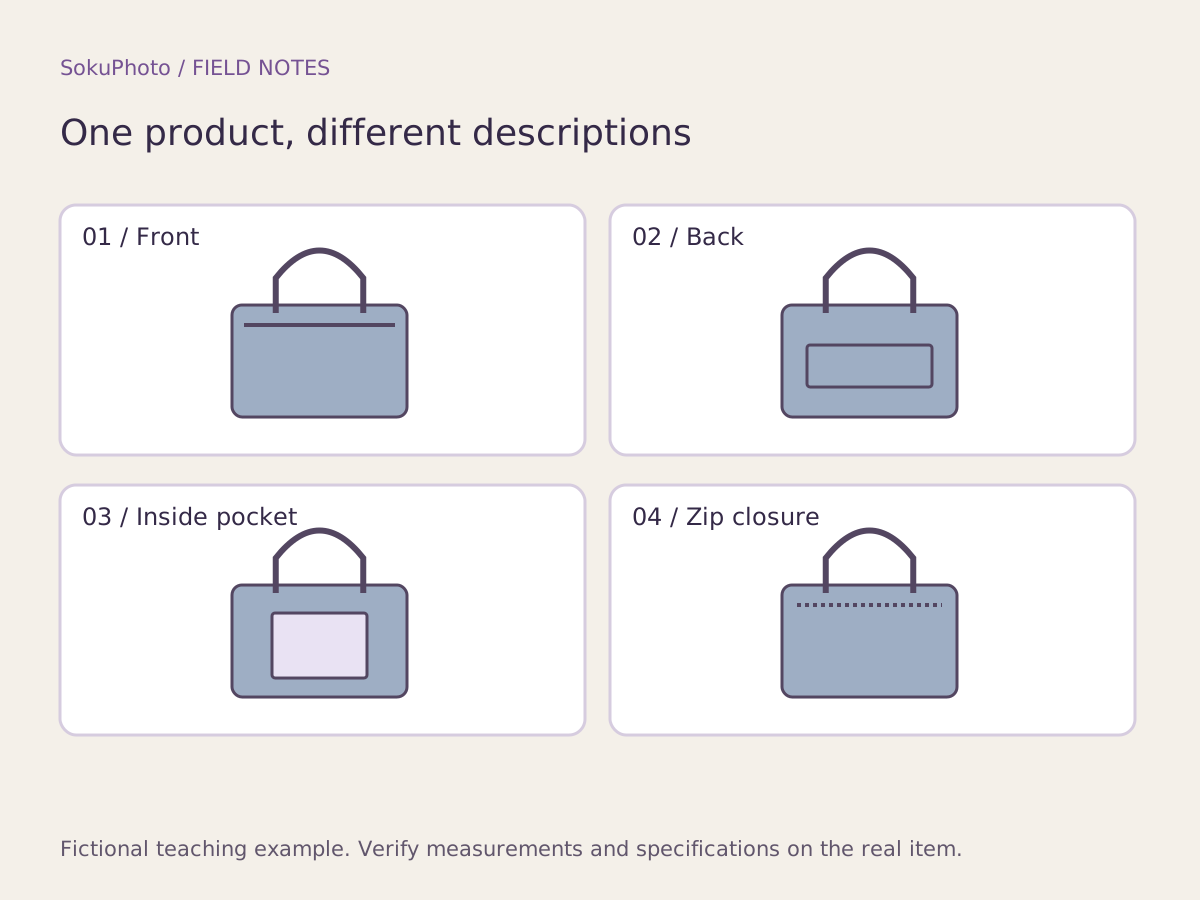
Alt text, product descriptions, and text on images have different jobs
Use the product description for overall specifications and purchase conditions, and alt text for the information a particular image conveys. Adding text to an image does not fill in the web page's alt field. Shopify describes alt text as an image description and explains that assistive technology uses it too.
Choose the subject, viewpoint, and useful details you can verify. Do not guess materials or performance that a photo cannot establish. A long list of search terms is not a description. If important dimensions or conditions appear only in an image, provide the same information in the regular product description too.
Reference: Shopify: Adding alt text to media ↗
Organize product images by what they need to communicate → When you want visible text on an image →
Compare 8 copy examples for 4 illustrations
These original examples use the line drawings above. They are not photographs of actual products or evidence of product materials. Each adds a distinct viewpoint and visible information to the shared description 'blue bag.' Before using an example as written, check that it matches your actual photo.
| Illustration | Copy to avoid | Example suited to the illustration |
|---|---|---|
| 01 Front | Popular bag commuting cheap recommended | Front view of a blue bag, showing its handle. |
| 02 Back | Blue bag | Back view of a blue bag with a horizontal outer pocket in the center. |
| 03 Interior | A handy bag made of premium materials | Inside of the bag, showing one small inner pocket. |
| 04 Opening | Product image 4 | Close-up illustration of the top of the bag, showing the zipper at the opening. |
Prepare a small table to track your output
Keep each image filename paired with its alt text so you can spot descriptions left behind when images are replaced. Do not add brands, material names, or capacity information that cannot be seen. Record necessary specifications separately in verified product information.
| Element to check | Completed example | What to omit |
|---|---|---|
| Visible subject | Blue bag | Unrelated search terms |
| Viewpoint | Back view | The same 'product image' label for every image |
| Useful detail | Horizontal outer pocket | Durability that is not visible |
| Corresponding file | bag_back_v2.jpg | A description of the old file |
Save in Shopify and cross-check against the actual image
In Shopify's desktop admin, open the product, select its media, enter the description in the add-alt-text field, and save. In the mobile app, edit it from the media information. If the interface wording differs, check the official help for the current entry point.
After saving, check the file and description pairing again. Overlaying copy on an image in SokuPhoto does not perform this setup for you. Correct alt text also cannot fix an image that cuts off the product, so correct composition problems in the source image.
Reference: Shopify: Adding alt text to media ↗
- Write one sentence covering the subject, viewpoint, and details of each image.
- Enter and save it in the actual media settings.
- Check that replaced images do not retain old descriptions.
- If you have access to assistive technology, check how the text is read aloud too.
Before you publish
- Descriptions of the 4 images differ according to viewpoint.
- Text on images and alt text have not been confused.
- No unseen performance or materials have been inferred.
- Descriptions have been saved in the store's media settings.
Sources & editorial notes
Original workflows, examples and diagrams by SokuPhoto. Fictional examples are not customer results. Verify the actual product and destination requirements before publishing. Sources reviewed: 2026-09-17.