 SokuPhoto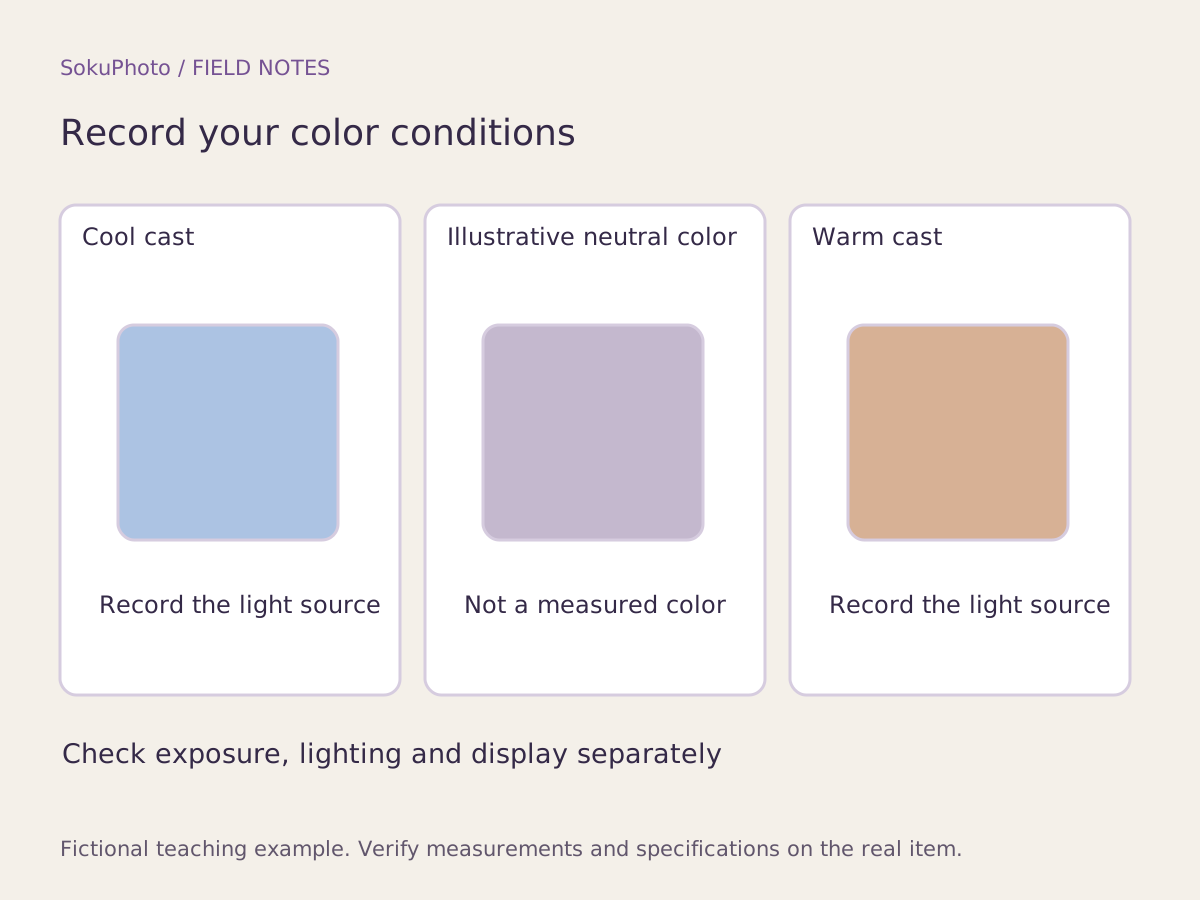
Separate color, brightness, and screen differences
A yellow cast may come from warm indoor lighting, darkness from underexposure, and a difference seen on only one device from its display conditions. Instead of changing everything at once, compare the original photos side by side on the same screen. Identify differences in the source photos before you start editing.
Nikon describes white balance as a setting that adjusts for the color of the light source. The colored panels above are an original diagram illustrating that idea. Even the panel labeled neutral is not a measurement of the product's correct color or a color accuracy test result.
Keep a record of shooting conditions
Record not only the time of day but also the window direction, curtains, whether indoor lights are on, the device, exposure, and white balance settings. If only automatic settings are available, explicitly write auto. If you use a reference such as a gray card, place the same reference in the same light and avoid mixing in a reference photographed under different lighting.
Product ID / source photo:
Shooting date and time:
Light source / indoor lights / curtains:
Device, lens, and shooting position:
White balance (write auto if automatic):
Exposure settings:
Reference object and reference file:
Screen used for comparison:
Unknown conditions:
Compare 2 sessions and record the reason for your decision
The following 2 rows are fictional work records, not examples of measured color differences or accuracy. The aim is to identify why conditions changed and retain photos that accurately describe the physical product, rather than to create a color you prefer.
| Session | Conditions | Observation | Decision and reason |
|---|---|---|---|
| A: Baseline shoot | 1 window, no indoor lights, same device, auto WB | Reference and product captured together | Check against the physical product before considering this a baseline |
| B: Additional shoot | Evening, window plus warm light, same device, auto WB | Even the reference looks yellow | Reshoot because the lighting is mixed. Do not force a correction with a strong blue filter |
Decide what can be adjusted and what needs a reshoot
If you used one light source and captured the necessary colors and details, you can compare versions with modest white balance and brightness adjustments. Reshoot or wait for verification if part of the product is lit by a different-colored light, blown highlights have erased a pattern, or no one can verify the physical product's correct color.
For products where color matters, retain the unedited source photo and compare the edited result against the physical item. SokuPhoto does not guarantee perfect color reproduction or identical appearance on every buyer's screen. Do not accept an image that makes the product look like a different color just to make the set look consistent.
Before you publish
- Color casts and darkness have been assessed separately.
- Lighting and settings have been recorded, including for additional shoots.
- The diagram's colors have not been treated as calibration results.
- Outputs that changed the product's color have been rejected, and source photos have been retained.
Sources & editorial notes
Original workflows, examples and diagrams by SokuPhoto. Fictional examples are not customer results. Verify the actual product and destination requirements before publishing. Sources reviewed: 2026-09-17.