 SokuPhoto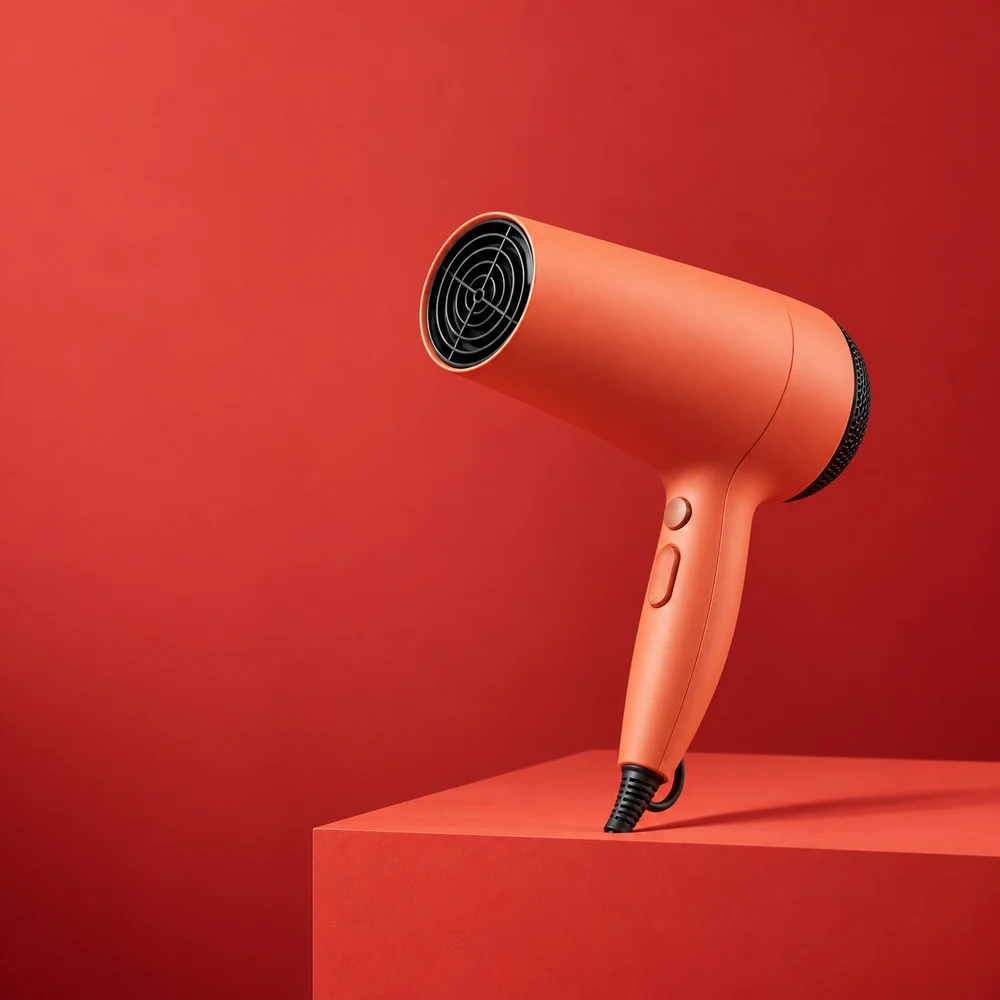
Verify the offer before laying it out
Write down the exact item or variant, price, currency, dates and any condition that changes what a buyer pays. Confirm them against the live offer. Do not invent an original price, discount percentage or scarcity claim because the template has room for one.
This article covers layout, not whether a promotion is legally valid. Tax, comparison-price and advertising requirements depend on where and how you sell. Use approved wording from the person responsible for the offer rather than asking the image model to decide it.
| Copy field | Question to resolve | Layout role |
|---|---|---|
| Main price | For which item and currency? | Largest text after the product |
| Condition | Does a code or quantity apply? | Close to the price |
| Dates | When does the offer end, and in which zone? | Readable supporting line |
Reserve a quiet area for the price
Choose a photograph with an empty side or top area. If every part is busy, shorten the copy or choose a different crop instead of covering the product. Leave connectors, labels and included accessories visible.
Adobe's banner tutorial treats typography, color and spacing as design decisions. For this task, keep the system small: one headline style, one support style and a clear contrast against the photograph. A solid text plate may be easier to read than an elaborate outline or shadow.
Use a mobile check, not a universal font-size rule
A font size alone cannot tell you whether a price will be readable: the exported dimensions and display width matter. As an illustrative calculation, a 40-pixel text size on a 1200-pixel image appears roughly 10 pixels tall when the image is displayed 300 pixels wide. That may be too small for important conditions.
Preview the final export at the actual card or message width. Read the price, currency and condition without zooming. If the condition fails, reduce the number of messages before making the whole card denser.
- Check the offer facts and paste only approved copy.
- Place the price in the reserved area and the condition directly beside or below it.
- Export a copy, open it outside the editor and check it at the intended display size.
- Compare the graphic with the live product option before publishing.
Plan the end of the promotion now
Save a text-free version and an editable working version. Note everywhere the graphic will be used so expired prices can be replaced. A date inside the image does not automatically remove it from a store or social post.
You can plan the copy on paper without paid software. SokuPhoto supports separate photo instructions and copy, followed by manual text adjustment and export. Use it for the layout; do not rely on AI-generated lettering for an exact price or factual condition.
Before you publish
- Price, currency and selected variant agree.
- Important conditions are readable without zooming.
- The text does not hide product information.
- A replacement plan exists for the offer's end.
Sources & editorial notes
Original workflows and examples by SokuPhoto, informed by the linked sources. Prompts are examples, not guarantees. Platform features and requirements can change; sources checked on September 16, 2026.